

Mac Mini M4 Storage: Apple Won't Let You Upgrade It. Here's What to Do Instead.
Von Doxmini Team
Apple charges $200 to go from 256GB to 512GB on the Mac mini at purchase. After purchase? You're out of luck — or so most people think.
Why You Can't Just Swap the SSD
The M4 Mac mini uses a proprietary SSD connector. The storage controller is built into the M4 chip itself. It's not a standard M.2 NVMe slot. You can't pop the lid and drop in a Samsung drive.
The DIY Route (For the Brave)
Jeff Geerling documented upgrading an M4 Pro's storage at half Apple's price using third-party proprietary modules. It works. But it voids your warranty, requires disassembly, and the replacement modules still aren't cheap.
Unless you're comfortable with that risk, there's a better way.
External Thunderbolt NVMe: Nearly as Fast
Here's what most people don't realize: a Thunderbolt 4 NVMe enclosure can hit up to 3,000 MB/s. The base Mac mini's internal 256GB SSD tops out around 1,500 MB/s for writes. So in some scenarios, external storage is actually faster than what shipped in the box.
OWC's Express 1M2 offers up to 8TB of external storage with roughly 30% faster writes than the base internal drive.
The Clean Route: Integrated Expansion
A standalone NVMe enclosure works great, but it's one more box on your desk with one more cable. These expansion stands and cases build NVMe storage directly into a stand or case for your Mac mini — one piece, no extra clutter:
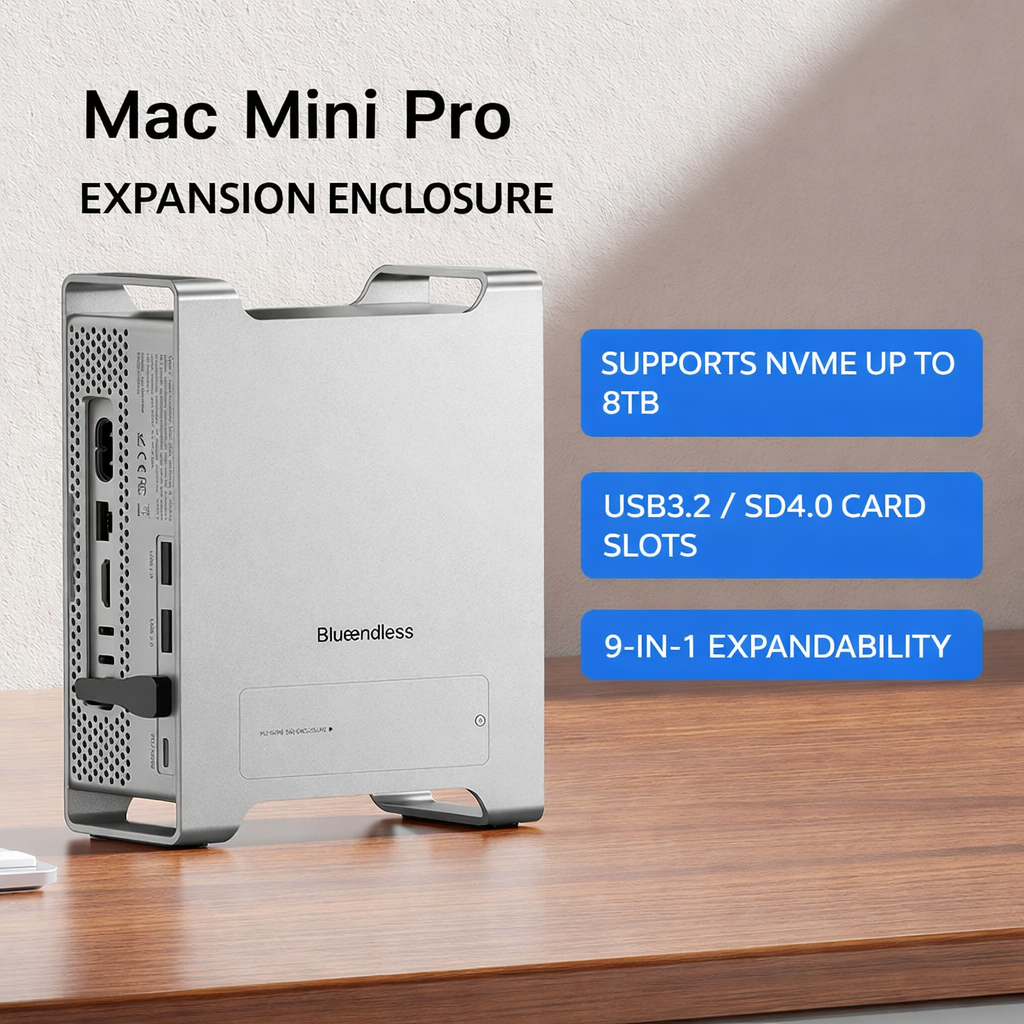 |
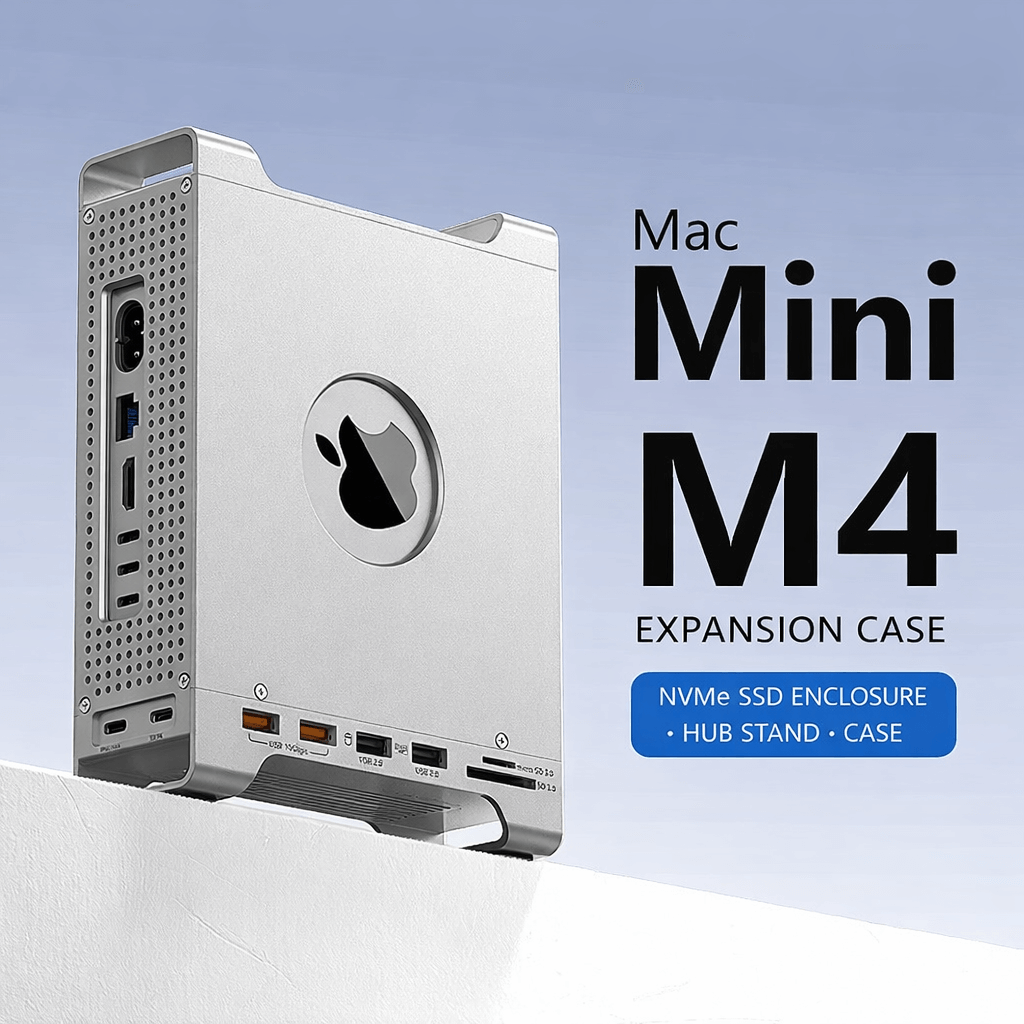 |
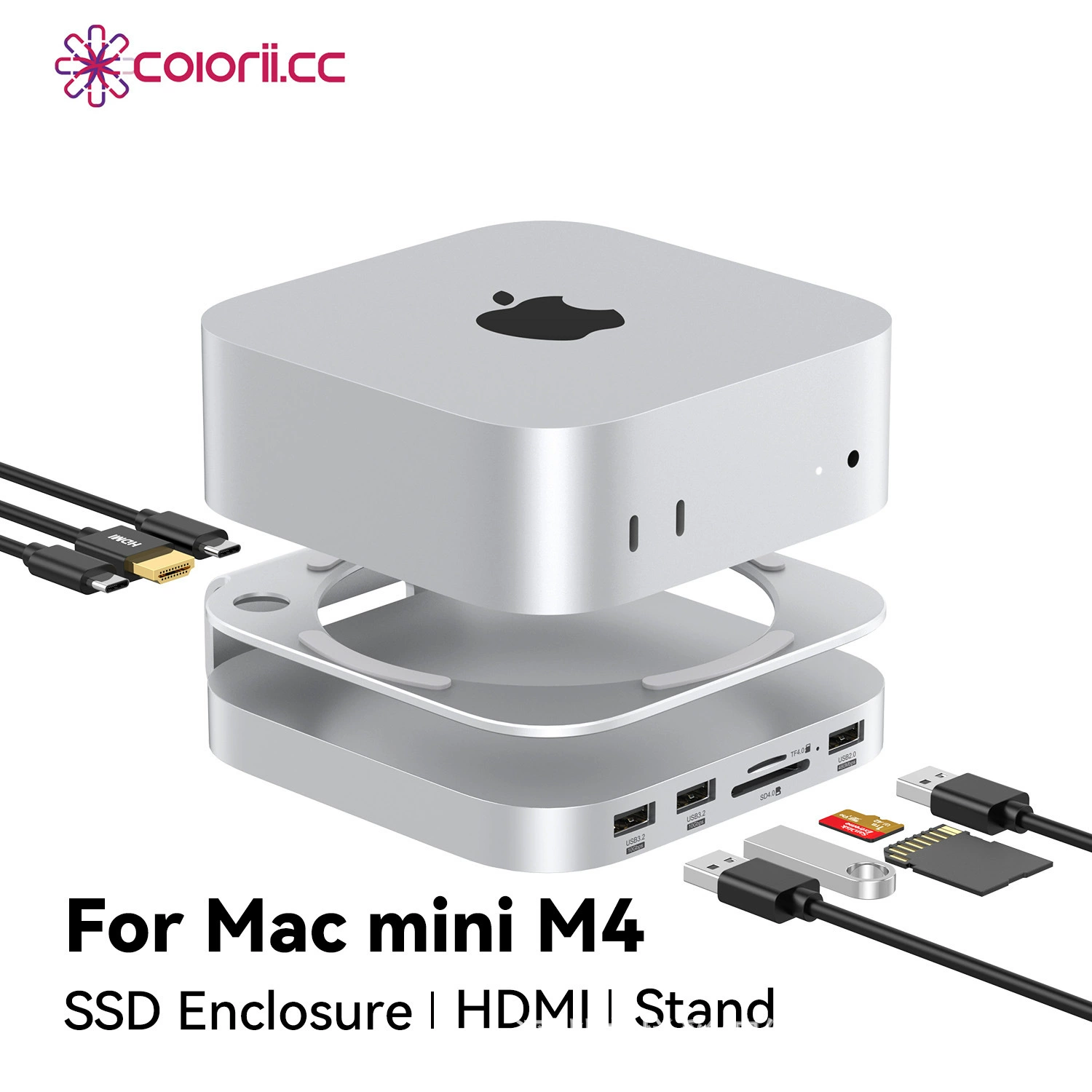 |
|---|---|---|
| Expansion Enclosure ($94.90) | Expansion Case ($96) | SSD Stand Hub ($166) |
| 9-in-1 vertical stand. NVMe up to 8TB, USB 3.2 (10Gbps), SD4.0 | Protective case with built-in NVMe, USB 3.2 Gen2 ×2 (10Gbps) + USB 2.0 ×2, SD3.0/TF3.0 | Aluminum stand with M.2 NVMe/SATA (2230–2280), HDMI 4K@60Hz, USB 3.2 ×2 (10Gbps), SD4.0/TF4.0 UHS-II |
All three connect via USB 3.2 Gen2 at 10Gbps (~1,000 MB/s real-world). In practice, that's fast enough for storing and opening documents, photos, music libraries, backups, Docker images, AI model files, and even editing 1080p or 4K video directly off the drive. For everyday work, you won't notice a difference from internal storage.
When 10Gbps isn't enough: If you're doing heavy pro video work (multicam 4K ProRes, 8K RAW), working with huge databases, or need maximum NVMe speed, you'll want a dedicated Thunderbolt 4 enclosure (40Gbps, ~3,000 MB/s) plugged into one of the Mac mini's rear Thunderbolt ports. Brands like OWC, CalDigit, and Acasis make excellent standalone TB4 NVMe enclosures for that.
How Much Storage Do You Actually Need?
- Office work (documents, email, web): 256GB is honestly fine for most people
- Creative work (photos, video): 1–2TB keeps you comfortable
- Development: 512GB–1TB depending on how many Docker images and repos you juggle
- AI/LLM models: A single 70B-parameter model at Q4 quantization is about 40GB. If you're collecting models, 2TB+ is smart
- Home server (Plex, media): External storage is practically mandatory — media libraries grow fast
Start with what you need now. Thunderbolt NVMe is easy to add later.