

Free Label Generator for Your Mac Mini Cluster — Print, PDF, or PNG
By Doxmini Team
You bought a second Mac mini. Then a third. Now you have a neat little stack on your desk or shelf — and a tangled mess of unlabeled cables behind it. You know which Ethernet cable goes where... until you don't.
If you've ever written on masking tape with a Sharpie, or printed a Word doc with cut-and-paste text boxes to label your gear, we built something better.
Introducing the Doxmini Label Generator
It's a free, browser-based tool that generates professional labels for your Mac mini devices and cables. No app to install. No account to create. No data uploaded anywhere — everything runs in your browser.
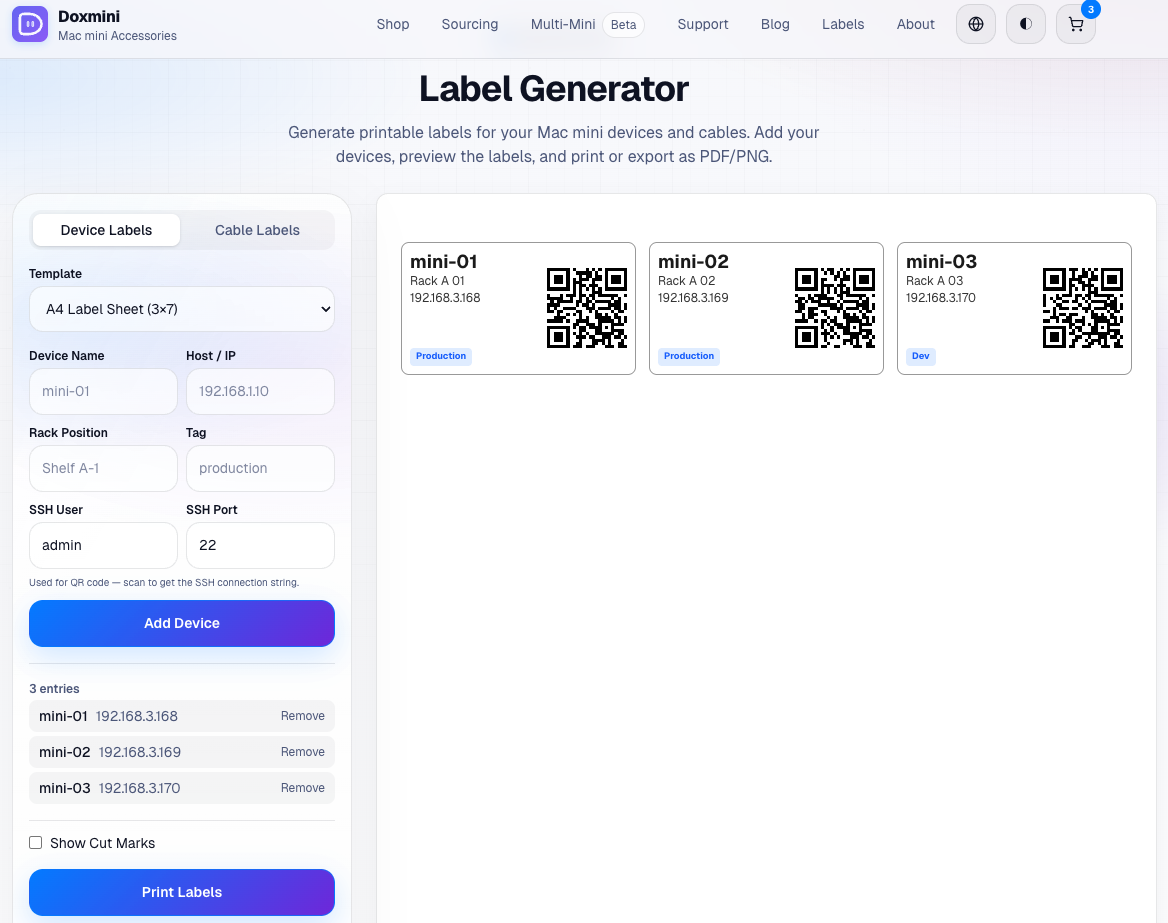
Device Labels with QR Codes
Add your Mac minis and the generator creates a label for each one showing:
- Device name — whatever you call it (mini-01, build-server, plex-box)
- Rack position — Shelf A-1, Rack B-03, or however you organize
- IP address — so you always know where to find it on the network
- Tag — a color-coded badge (production, staging, media, backup)
- QR code — encodes the full SSH connection string (
ssh://user@host:port)
That last one is the killer feature. Scan the QR code with your phone and you've got the SSH command ready to paste into your terminal app. No more looking up IP addresses or remembering which machine is on which port.
Cable Labels That End the Spaghetti
Every cable in your setup can get its own label showing:
- Source and destination — "SW1-07 to MINI-03" so you know both ends
- Cable type — Ethernet, Power, Thunderbolt, or USB, each color-coded
- IP address — for network cables, printed right on the label
When you need to swap a cable or troubleshoot a connection, you'll know exactly what you're looking at without tracing it end to end.
Two Template Options
A4 Label Sheet (3x7)
Fits 21 labels per page in a 3-column, 7-row grid. Print on standard A4 paper and cut along the optional cut marks. Great for labeling an entire setup in one go.
Thermal 62x29mm
Designed for Brother-style thermal label printers. One label per print, sized at 62x29mm. Perfect for ongoing use — add a new device, print a single label, stick it on.
Three Ways to Get Your Labels
Print directly — hit Print and send to any connected printer. The print stylesheet hides the UI and shows only your label sheet.
Export as PDF — download a print-ready PDF file. Useful for archiving your label layouts or printing later on a different machine.
Export as PNG — download as an image file. Handy for documentation, wikis, or sharing your setup with others.
How to Use It
- Go to the Label Generator
- Choose Device Labels or Cable Labels
- Select your template — A4 Sheet or Thermal
- Fill in your device or cable details and click Add
- Repeat for each device or cable
- Preview your labels on the right
- Print, export PDF, or export PNG
That's it. No registration, no email required, no "free tier" limitations. The tool is completely free.
Why We Built This
We sell Mac mini accessories — rack mounts, stands, cases, cable management. But we also run our own Mac mini clusters every day. We know the pain of unlabeled setups because we've lived it.
This label generator started as a feature in RackMini, our upcoming native macOS app for managing Mac mini clusters. But we realized that not everyone needs a full management app — sometimes you just need labels. So we made it available as a free standalone web tool.
If you do manage multiple Mac minis and want real-time monitoring, alerts, and SSH management alongside your labels, keep an eye on RackMini. But if all you need right now is to stop the cable chaos, the label generator is ready to go.
Tips for Best Results
- Use the QR codes. They encode
ssh://user@host:port, which most terminal apps on iOS and macOS can parse directly. It saves real time when you're troubleshooting and need to connect fast. - Be consistent with naming. Use a naming convention like
mini-01,mini-02orbuild-a,build-b. Your future self will thank you. - Label both ends of every cable. The cable label format shows source and destination, which makes this easy.
- Print a spare set. Labels wear out, especially in warm environments near hardware. Keep a backup sheet in a drawer.
- Try thermal labels for ongoing use. If you add machines regularly, a thermal printer pays for itself in convenience.
The Label Generator is free, runs entirely in your browser, and works with any Mac mini setup. Give it a try — your cables will thank you.